Run Your Own VPN Server on Linux
With qrvpn you can easily run your own VPN server on Linux and connect to it from anywhere.
No open ports, public IP, router settings and special knowledge are required.
Not Linux? See other systems.
Get
Download qrvpn to your Linux.
- wget https://get.qrvpn.com/qrvpn.tgz
--2026-01-19 14:07:51-- https://get.qrvpn.com/qrvpn.tgz
Resolving get.qrvpn.com (get.qrvpn.com)... 172.104.9.252
Connecting to get.qrvpn.com (get.qrvpn.com)|172.104.9.252|:443... connected.
HTTP request sent, awaiting response... 200 OK
Length: 5542713 (5.3M) [application/octet-stream]
Saving to: 'qrvpn.tgz'
qrvpn.tgz 100%[===================>] 5.29M 8.04MB/s in 0.7s
2026-01-19 14:07:52 (8.04 MB/s) - 'qrvpn.tgz' saved [5542713/5542713]
Unpack from archive.
- tar -zxvf qrvpn.tgz
qrvpn
Run and Configure
Run qrvpn and set server parameters.
- ./qrvpn
Welcome to qrvpn v1.07
Creating new conf-file /etc/qrvpn/qrvpn.conf
Run as [S]erver or [C]lient? (default: S): S
Running as server
Server Name (default: localhost HHCUDT): Test Server
Server Name = Test Server
Password: TestPassword
Using password
Log level: 1-errors only, 2-normal, 3-verbose, 4-debug: (default: 2): 3
Log Level = verbose
Register WireGuard native server? Y/N: (default: N): N
Registering configuration (may take up some time)...
2026-00-19 14:47:09.0000 [M] Initialization started
2026-00-19 14:47:09.0000 [V] Connect VPN using usnj
2026-00-19 14:47:10.0000 [V] Initial backend request done
Configuration completed successfully: /etc/qrvpn/qrvpn.conf
To connect to this server use:
███████████████████████████████████████
███████████████████████████████████████
█████ ▄▄▄▄▄ █▀▀ ██ █▀▀█▀▄▄█ ▄▄▄▄▄ █████
█████ █ █ █▄▀██▀▀▀██▄▀ ██ █ █ █████
█████ █▄▄▄█ █ ▄ █ █▄▀ ▀ ▀▀█ █▄▄▄█ █████
█████▄▄▄▄▄▄▄█ █ ▀▄█ ▀ ▀▄█ █▄▄▄▄▄▄▄█████
█████ ▄▀ ██▄▄█▀█ ▀ █▀▀██▄█ ▄▀▄▄▀█████
█████ ▀█▀ ▄▄▀▀▀ ▀▀█ █ ▄▀▄▀ ▄ ▀█████
█████▀ ▀▀▀█▄▄ █▄ ▄▄ ▄ ▀ █▄ █▀▀▄▄█████
█████▀▀██▄▄▄█▄██▄▄ ██▄▀▀▀▄ ▄▄▄▀▄ █████
██████▀▄█▀▀▄█ ▀▀█▀▀▄ ▄ ▄▀ ▀▀█▀██▀█████
█████▄██ ▀▀▄▀ ▄▀▀▄▄█▀ ▀ ██▀▄▄▀██▄ █████
█████▄█▄█▄█▄▄▀ ▀ █▄▄█▀ █ ▄▄▄ █ █ █████
█████ ▄▄▄▄▄ █▄▄ █▀▀▄▀ ▄▄▀ █▄█ ▀▀▄▀█████
█████ █ █ █▀▀▄ █▄▀ ▄█ ▄ ▀▀ ██████
█████ █▄▄▄█ █▀▄▄ █ ███▀█ ▀ ▀▄▄▄▄▀▄█████
█████▄▄▄▄▄▄▄█▄█▄█▄██▄█▄██▄███▄▄█▄██████
███████████████████████████████████████
███████████████████████████████████████
qrvpn://a?d=74b8f11c4b7fa712&k=8zOqLZOV2fKjaMH2
To start qrvpn use:
./qrvpn run
Server Running
Run qrvpn and pass access details of the VPN server to qrvpn clients as QR-code, name/password or encrypted link.
- ./qrvpn run
Welcome to qrvpn v1.07
2026-01-19 14:47:50.0000 [M] Initialization started
2026-01-19 14:47:50.0000 [V] Connect VPN using usnj
2026-01-19 14:47:51.0000 [V] Initial backend request done
2026-01-19 14:47:51.0000 [M] VPN interface opened tun0
2026-01-19 14:47:51.0000 [M] VPN interface initialized
2026-01-19 14:47:51.0000 [M] Server ready
Start Client
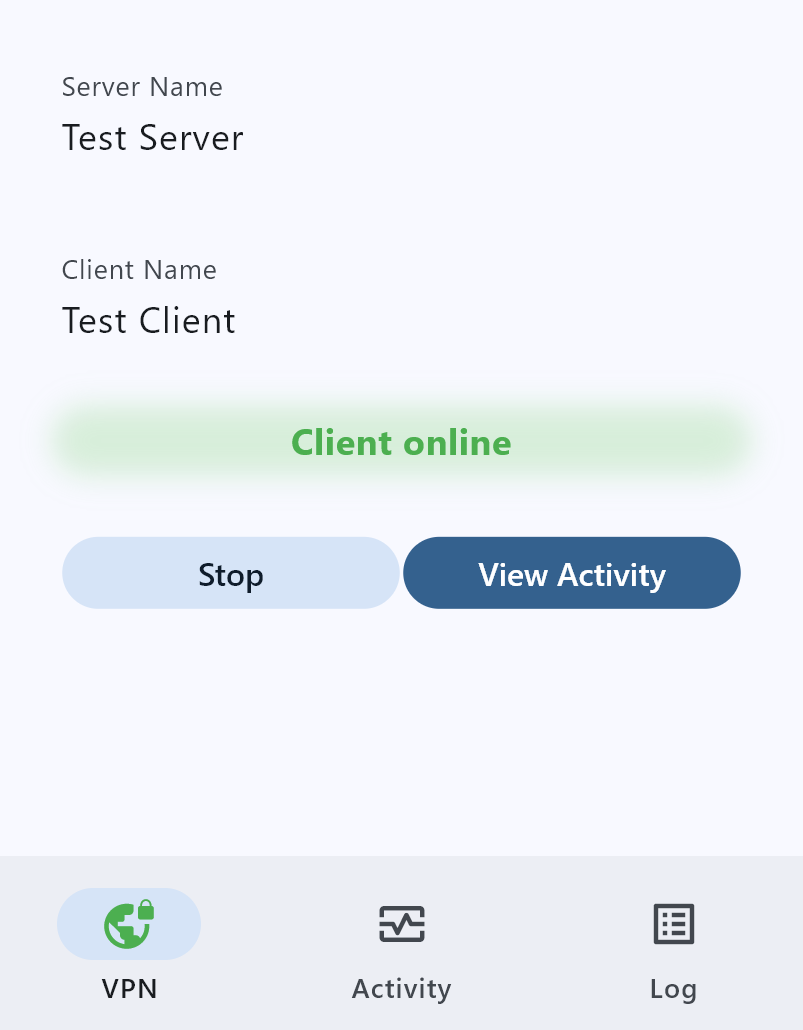
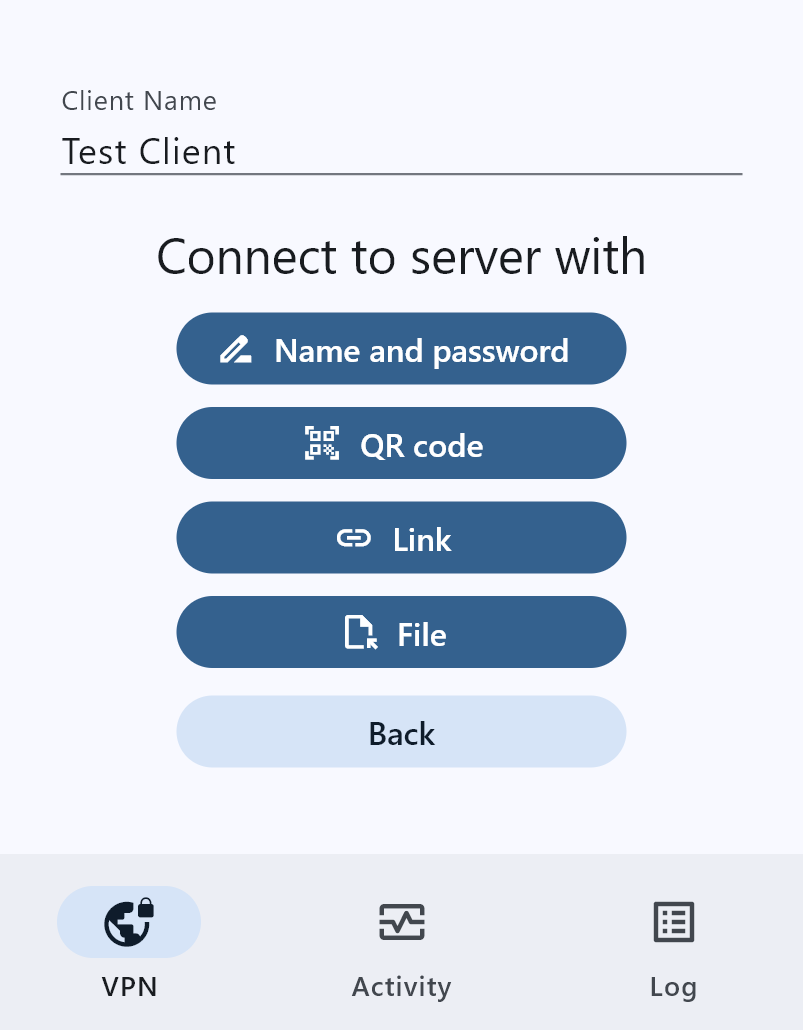
Start qrvpn client on any device and connect to the VPN server with name/password, QR-code, or encrypted link.
Server Activity
Monitor connections to your VPN server through qrvpn output.
2026-01-19 14:48:46.0000 [M] Connection with Test Client
2026-01-19 14:48:50.0000 [V] WG Test Client: Received handshake_initiation remote_idx=2
2026-01-19 14:48:50.0000 [V] WG Test Client: Sending handshake_response local_idx=1
2026-01-19 14:48:51.0000 [V] WG Test Client: New session session=1
2026-01-19 14:48:52.0000 [V] UDP 8.8.8.8:443 UDP connection from Test Client
2026-01-19 14:48:53.0000 [V] UDP 8.8.8.8:443 UDP connection from Test Client
2026-01-19 14:48:55.0000 [V] 157.240.253.33:443 connection from Test Client
2026-01-19 14:48:55.0000 [V] 157.240.253.33:443 open
2026-01-19 14:48:55.0000 [V] 157.240.253.33:443 connection established to 157.240.253.33
2026-01-19 14:48:55.0000 [V] 8.8.8.8:853 connection from Test Client
2026-01-19 14:48:55.0000 [V] 8.8.8.8:853 open
2026-01-19 14:48:55.0000 [V] 8.8.8.8:853 connection established to 8.8.8.8
2026-01-19 14:48:59.0000 [V] UDP 8.8.4.4:443 UDP connection from Test Client
Client Running
All your connections are now routed through the VPN server.